
Setup guide
The Skylight Calendar + GroupMe calendars
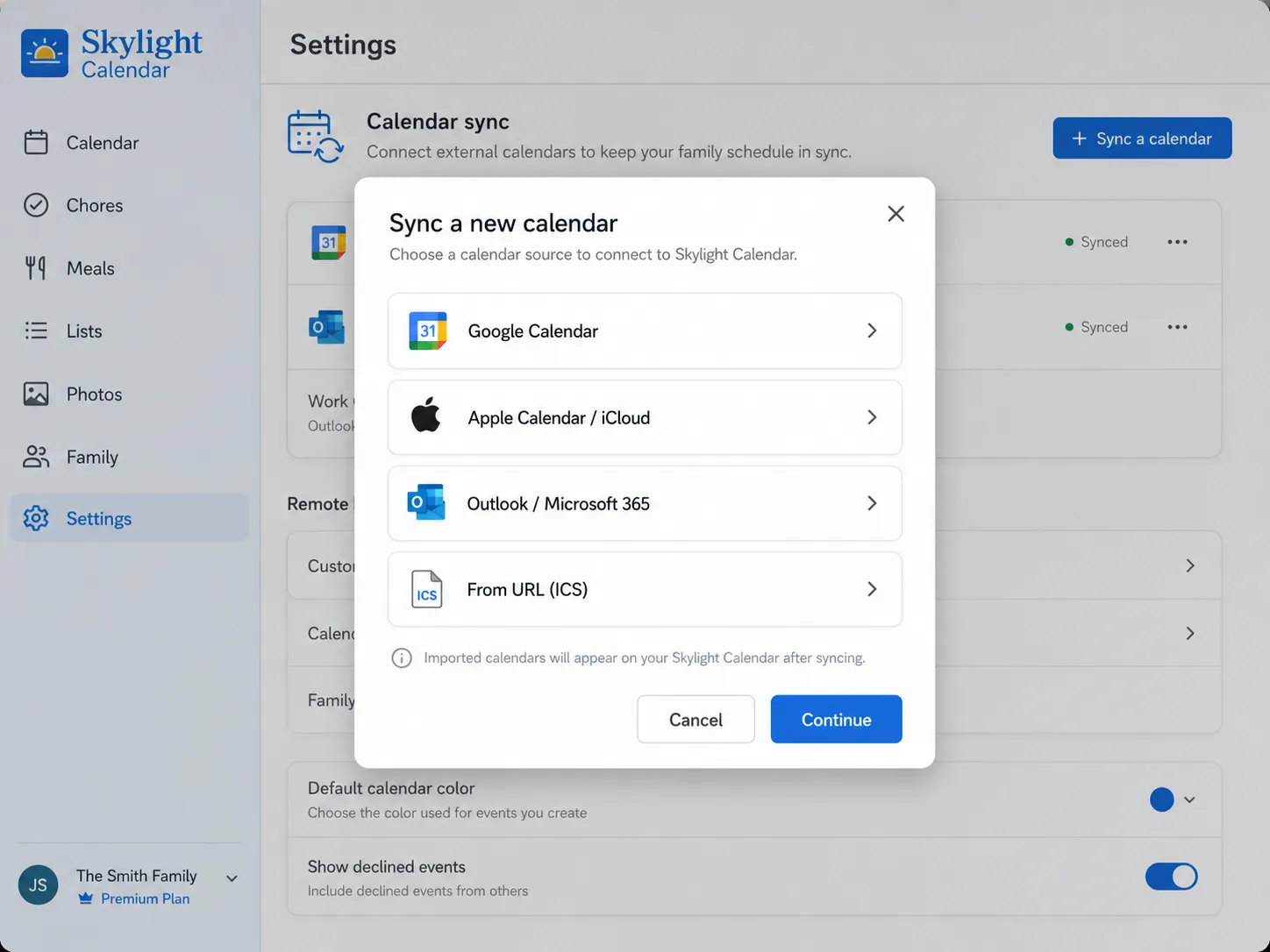
To show GroupMe events on a Skylight Calendar, copy the private calendar URL gmCalSync creates for the group, open the Skylight app, go to My Skylight → Sync Calendars → Sync new calendar, choose TeamSnap, and paste the URL. Skylight then pulls the GroupMe schedule onto your family display automatically.
- Setup time
- About 5 minutes
- Works with
- Google, Apple, Outlook, Android, Skylight
- Calendar access
- Read-only private link
- Getting started
- Free trial, cancel anytime
Private links • Read-only • Free trial • Cancel anytime • Last updated July 22, 2026
How to use Skylight Sync with gmCalSync
- Copy the private calendar URL from gmCalSync.
- Open the Skylight app (mobile or desktop).
- Select the My Skylight menu button.
- Select Sync Calendars.
- Select Sync new calendar.
- Select TeamSnap as the calendar source.
- Paste the gmCalSync URL into the textbox, or email the URL to your Family Email Address.
Why this works
Skylight supports subscription-style calendar sync. gmCalSync provides a private GroupMe calendar feed URL, which Skylight can poll through its sync flow. That keeps GroupMe plans visible on the home calendar display without anyone retyping them.
If events are slow to show
Skylight refreshes subscribed calendars on its own cycle, so a new GroupMe event lands on the display after the next poll rather than instantly. More on subscription refresh timing.
Frequently asked questions
How do I get GroupMe events onto a Skylight Calendar?
Create a private calendar URL for the GroupMe group in gmCalSync, then in the Skylight app open My Skylight → Sync Calendars → Sync new calendar, choose TeamSnap, and paste the URL.
Why do I pick TeamSnap in Skylight?
TeamSnap is the Skylight sync option that accepts a plain calendar subscription URL. gmCalSync produces that same kind of URL, so it is the path that works for a GroupMe feed.
Do I have to re-enter GroupMe events on Skylight?
No. Skylight subscribes to the feed, so events added or edited in GroupMe flow through on Skylight's refresh cycle without retyping.
Can different GroupMe groups appear as separate Skylight calendars?
Yes. gmCalSync creates a separate URL per group, so you can sync each one and keep team, school, and family schedules distinct.
Related GroupMe calendar guides
Create your GroupMe calendar feed
Connect GroupMe once and gmCalSync generates a private calendar URL for every group you choose.
Private links • Read-only • Free trial • Cancel anytime