
Made for home visibility
Put GroupMe-created plans onto the calendar display your family already checks.
GroupMe → Skylight
To put GroupMe calendars on a Skylight Calendar, create the group's private calendar URL in gmCalSync, then open the Skylight app and use My Skylight → Sync Calendars → Sync new calendar → TeamSnap and paste the URL. Skylight polls that feed, so GroupMe events show up on the family display without anyone retyping them.
Private links • Read-only • Free trial • Cancel anytime • Last updated July 22, 2026
Skylight Calendar is often the shared screen for a household, while GroupMe is where teams and groups create plans. gmCalSync helps bring those GroupMe events onto the family calendar display.
Create the private GroupMe calendar URL, then use Skylight Sync to import it so upcoming events can stay visible where everyone checks the schedule.
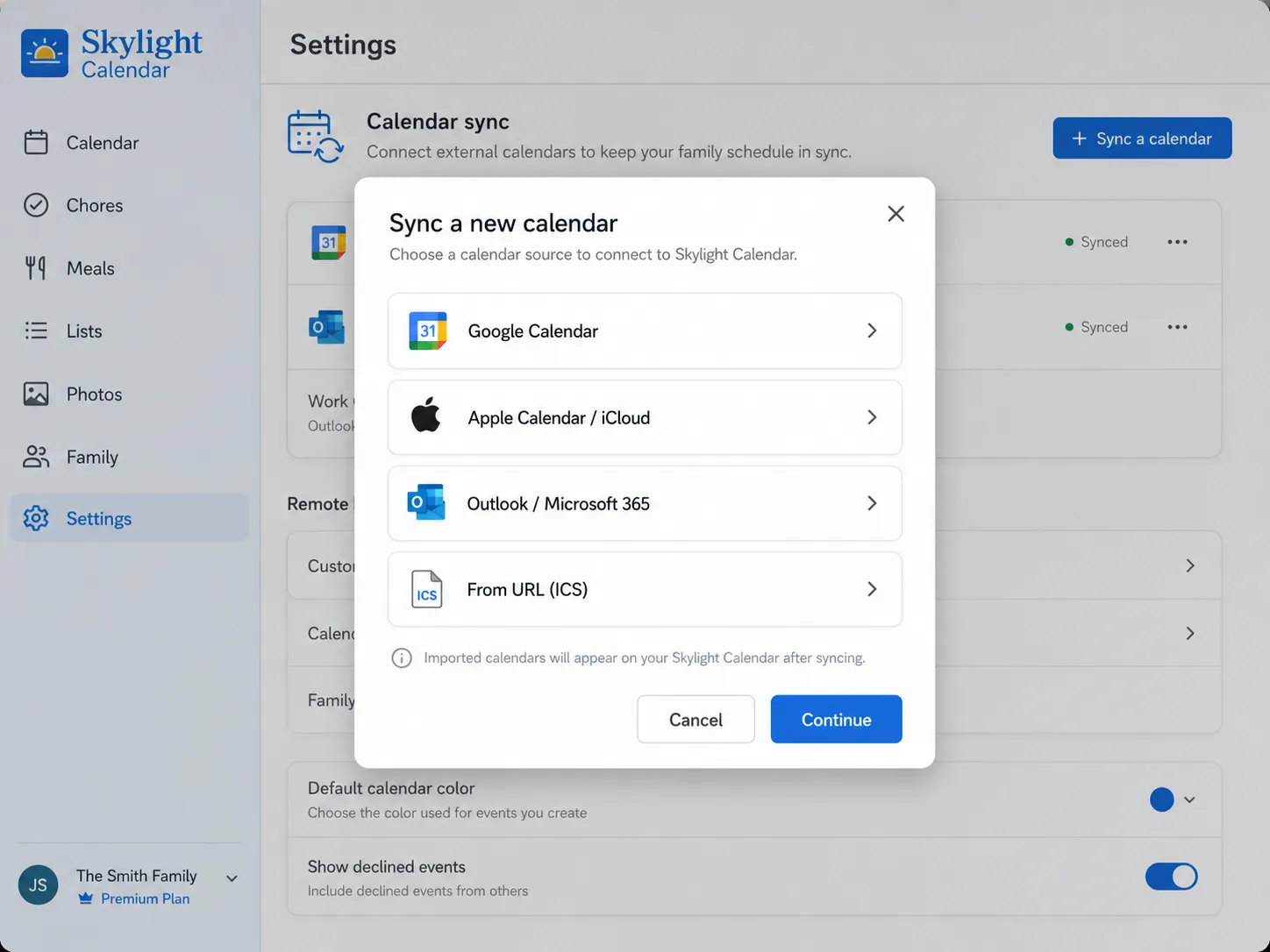
When a team or group uses GroupMe, plans can stay hidden in chat. A subscribed Skylight feed puts those plans on the shared calendar your household can see.
Want the click-by-click version? Follow the Skylight Sync setup guide.
Put GroupMe-created plans onto the calendar display your family already checks.
gmCalSync creates the subscription link Skylight can import through its sync flow.
Keep sports, school, club, and parent-group schedules visible outside the GroupMe app.
Yes. gmCalSync creates a private GroupMe calendar URL that can be imported through Skylight Sync.
Choose TeamSnap in the Sync new calendar flow. It is the Skylight option that accepts a plain calendar subscription URL like the one gmCalSync creates.
No. Skylight subscribes to the GroupMe calendar feed instead of requiring you to type every event again.
Yes. gmCalSync creates separate calendar URLs for separate GroupMe groups.
Connect GroupMe, choose the groups you want to sync, and generate private calendar links for the calendar apps your household or team already uses.
Private links • Read-only • Free trial • Cancel anytime