
Setup guide
How to add GroupMe to Outlook Calendar
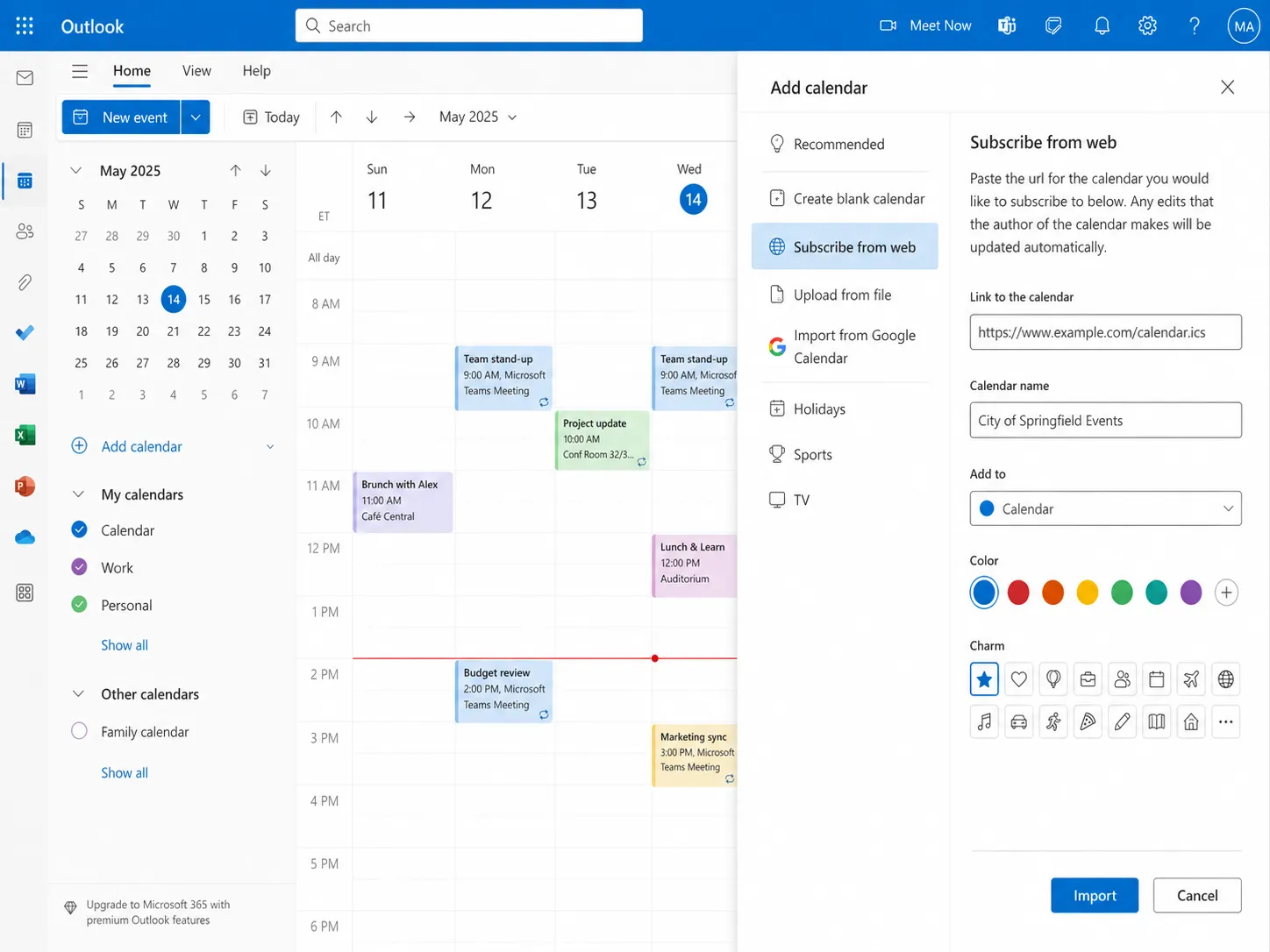
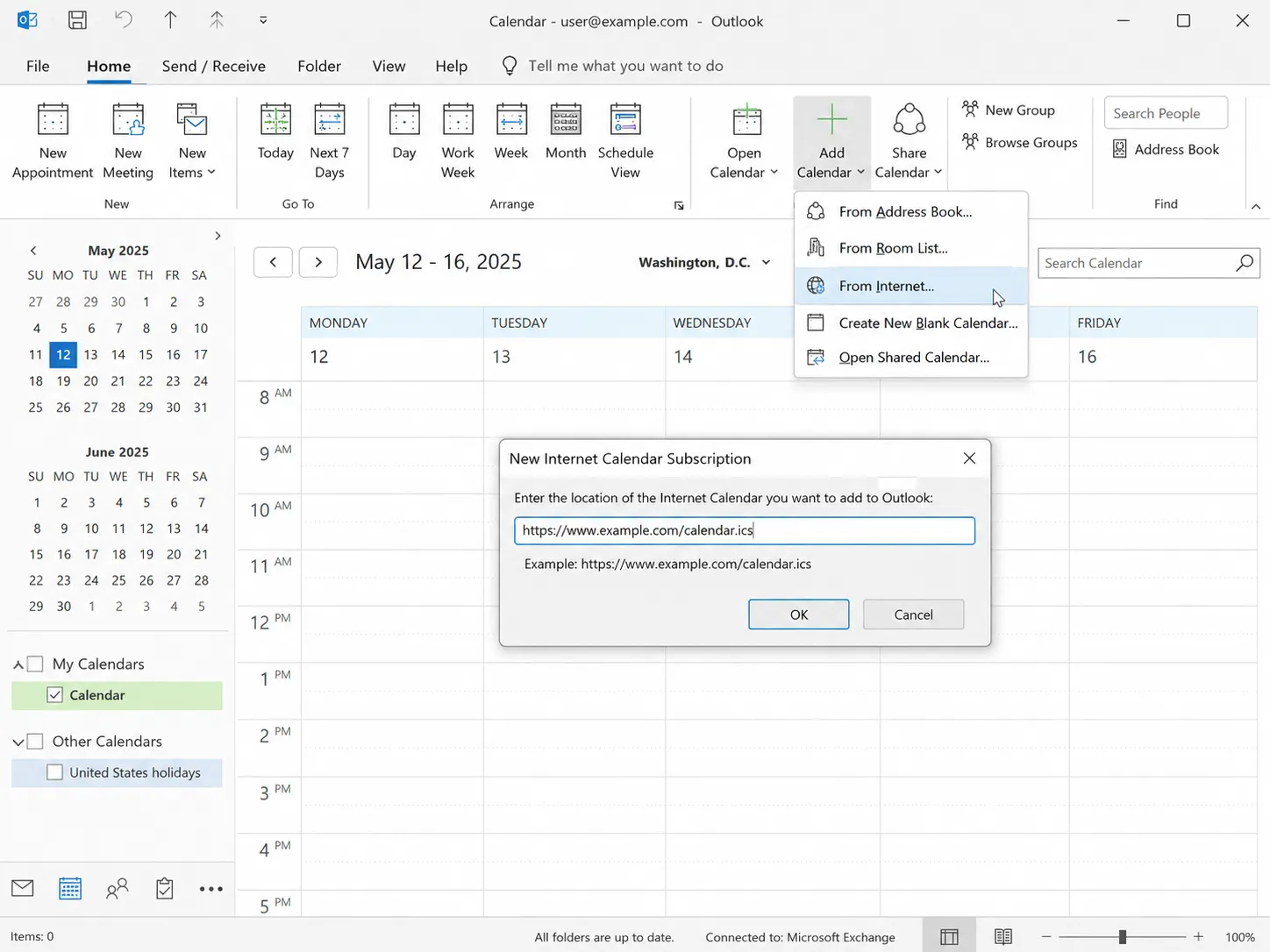
To add GroupMe to Outlook, copy the private iCal link gmCalSync creates for your group, then in Outlook.com open the Calendar, choose Add calendar → Subscribe from web, paste the link, name the calendar, and save. In Outlook desktop use Home → Add Calendar → From Internet. Outlook then refreshes the feed on its own schedule.
- Setup time
- About 5 minutes
- Works with
- Google, Apple, Outlook, Android, Skylight
- Calendar access
- Read-only private link
- Getting started
- Free trial, cancel anytime
Private links • Read-only • Free trial • Cancel anytime • Last updated July 22, 2026
Outlook.com (web) steps
- Go to outlook.com and sign in.
- Click the Calendar icon.
- Select Add calendar (or the gear icon → View all Outlook settings → Calendar → Shared calendars).
- Choose Subscribe from web.
- Paste the gmCalSync link in the "Link to Calendar" field, give it a name, and click Save.
Outlook desktop (Windows) steps
- Open your Calendar in Outlook.
- Go to the Home tab and click Add Calendar → From Internet (or Open Calendar → From Internet).
- Paste your calendar URL into the address field.
- Click OK, then click Yes to add it.
What to expect after subscribing
- The calendar is read-only in Outlook — events are still managed in GroupMe.
- Outlook decides the refresh interval, so a brand new GroupMe event is not instant.
- Work and school tenants can restrict internet calendars; a personal account always works.
Events not showing yet? See why subscribed calendars update on a delay.
Frequently asked questions
How do I add a GroupMe calendar to Outlook?
Copy the private iCal link from gmCalSync, then in Outlook.com open the Calendar, choose Add calendar → Subscribe from web, paste the link, name it, and save. In Outlook desktop use Home → Add Calendar → From Internet.
Does this work with a work or school Outlook account?
Usually yes, as long as your organization allows internet calendar subscriptions. Some tenants disable Subscribe from web; in that case add the calendar to a personal Outlook.com account instead.
Will Outlook keep the GroupMe calendar updated?
Yes. A subscribed internet calendar keeps checking the feed instead of importing a one-time snapshot. Outlook controls how often it refreshes.
Can I add more than one GroupMe group to Outlook?
Yes. Each GroupMe group has its own private iCal link, so you can subscribe to as many as you want and name each calendar separately.
Related GroupMe calendar guides
Create your GroupMe calendar feed
Connect GroupMe once and gmCalSync generates a private iCal link for every group you choose.
Private links • Read-only • Free trial • Cancel anytime